
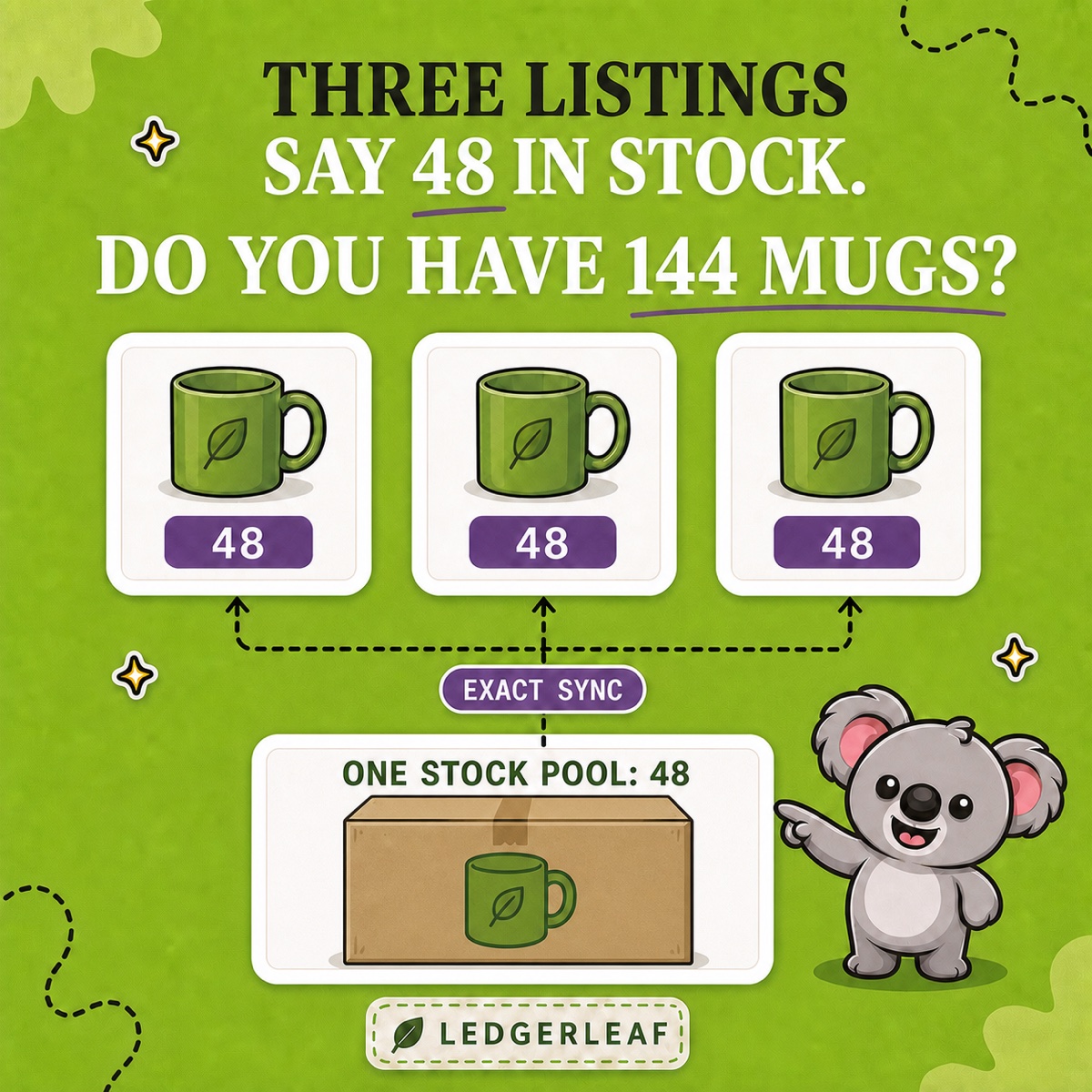
Three Shopify product pages each say 48 in stock. Do you have 144 units, or one box of 48 that can be bought through three different listings? If those listings sell the same mugs, an order on one page can leave the other two promising stock that is already spoken for. You face refunds, disappointed customers, and another round of manual corrections.
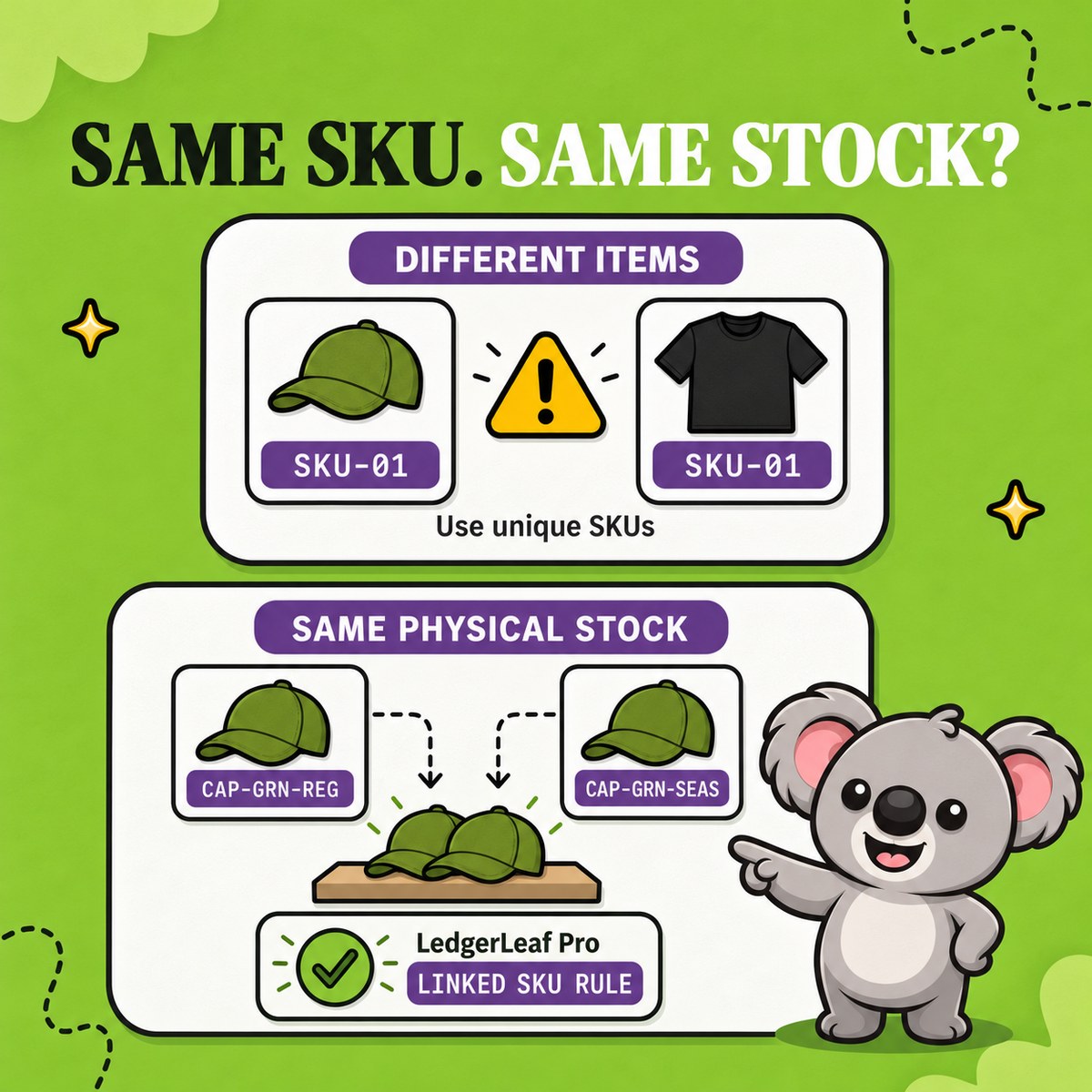
Shopify gives every product variant its own stock record. Matching titles or repeated SKUs do not create a shared quantity. LedgerLeaf Pro links related SKUs and uses exact sync to match the stock of the changed SKU across the group. You can keep separate product pages for different audiences without chasing their quantities after every order.
Start with one physical stock pool
Linked inventory is appropriate when different Shopify products or variants are alternative ways to sell the same physical item. Your everyday, gift, and office listings can all draw from the same shelf of green mugs.
Keep a distinct SKU for each listing so you can identify which page generated an order. Shopify’s SKU guidance warns that duplicate SKUs can cause inventory-tracking and integration problems. Copying MUG-GRN into three records is a poor workaround for a missing stock relationship.
Use a readable family of identifiers for the LedgerLeaf rule.
| Listing | SKU | Stock it draws from |
|---|---|---|
| Everyday green mug | MUG-GRN-EVERYDAY |
The same 48 mugs |
| Gift-page green mug | MUG-GRN-GIFT |
The same 48 mugs |
| Office green mug | MUG-GRN-OFFICE |
The same 48 mugs |
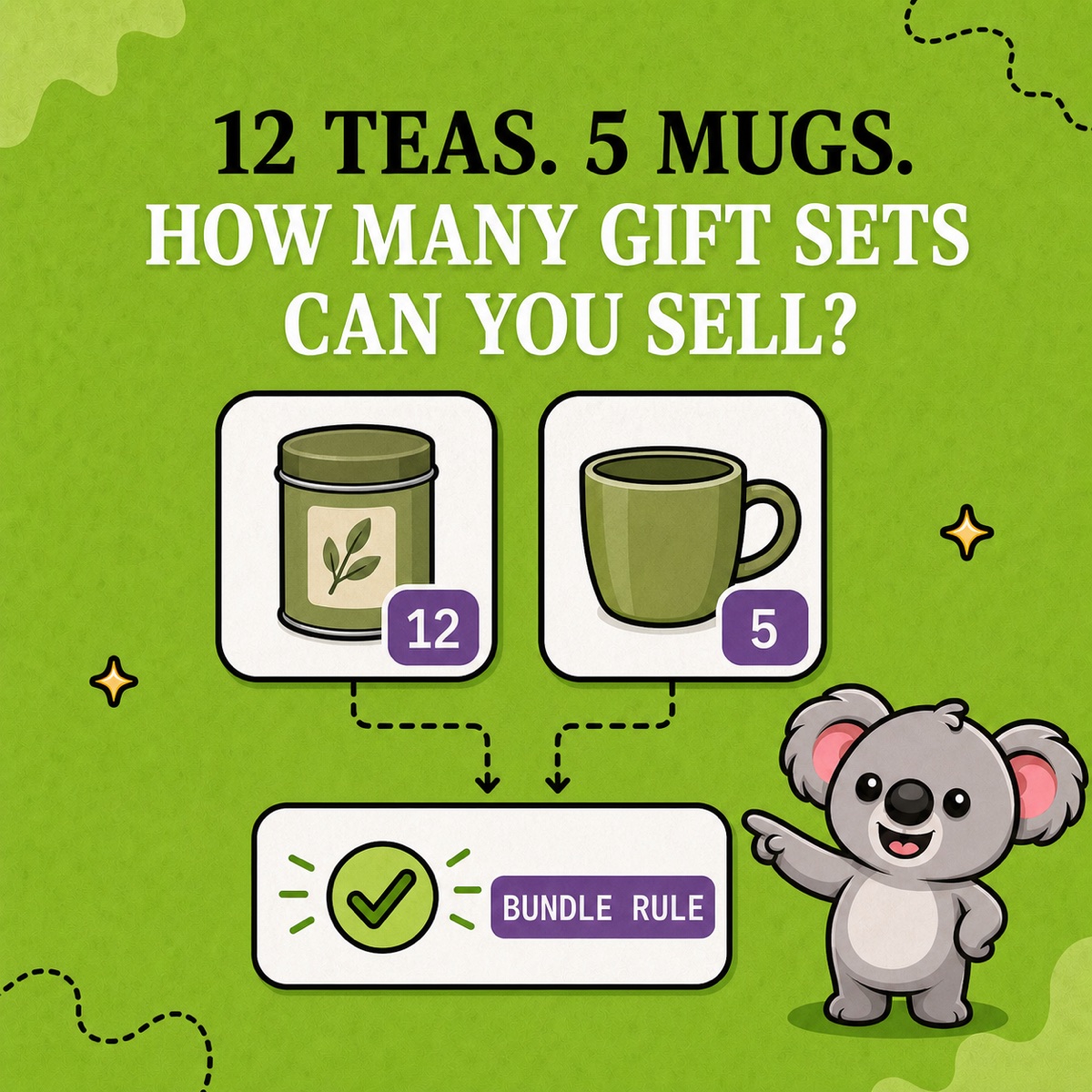
Different colours, sizes, or materials belong in separate groups. A two-mug pack needs a bundle rule because each sale consumes two units. Linking it as another single mug would misrepresent what you can fulfil.
Shopify also tracks inventory separately at each location. For this example, use one location with 48 mugs available to sell and no existing reservations. Three listings showing 48 represent three ways to buy those units, not 144 mugs.
Create the linked-SKU rule in LedgerLeaf Pro
Open Inventory in LedgerLeaf from Shopify admin. Use the SKU filter and Apply filters to find the mug family and review which products belong in the group. Check the complete SKUs so a similar blue mug or a two-pack cannot slip in.
In the rule form, choose Link SKU under Rule type and Exact sync under How to calculate stock. Set the SKU pattern to match the intended listings, give the rule a recognizable name such as “Green mug shared stock,” and review the group before activating it.
Exact sync follows the quantity of the changed SKU. That is the useful behaviour here. A sale reducing one listing to 45 should bring the linked listings to 45 as well. The minimum and maximum options select the lowest or highest stock value instead, so choose exact sync for this example.
Start from a checked available quantity across the group. If one listing incorrectly shows 60, that number is not evidence of twelve extra mugs. Correct the starting stock before relying on the rule.
Follow a sale, a return, and a delivery
Run a small check before sending campaign traffic to the listings. The following sequence shows what the linked quantities should display once each change has synced.
| Event | Shared available quantity on each listing |
|---|---|
| Starting stock | 48 |
| Gift listing sells three mugs | 45 |
| One of those mugs is returned and restocked | 46 |
| Twelve new mugs are received into available stock | 58 |
After the three-mug order, vanilla Shopify reduces the gift listing while the other independent records can still show 48. A spreadsheet may record 45 correctly, but it does not update those product pages. The LedgerLeaf rule carries that change across the linked listings, removing the repeated correction from your team’s workload.
Return only one mug in the check, and confirm that the restock adds one rather than three. Then record the twelve-mug delivery once and let the rule align the group. Adding twelve separately to every already-synced listing can inflate the shared quantity.
Repeat a test order through the everyday and office pages, and check a manual reduction for a damaged mug. Use Shopify’s stock adjustment history to see which staff member, app, or sales channel made each change. For multiple locations, check the relevant location quantities separately before extending the setup.
Keep the solution simple and affordable
LedgerLeaf works inside Shopify admin without a separate external account. You manage a stock rule alongside your store data instead of maintaining a spreadsheet and a reminder to correct every listing.
LedgerLeaf Pro costs US$5.90 per month. NASP Connected Inventory starts at US$9.99 per month and lists English as its app language. That is US$4.09 more each month for an inventory app, while LedgerLeaf also includes sales exports and VAT, OSS, and payout reports. LedgerLeaf supports English, Italian, Spanish, German, and French, making the workflow easier to use in your preferred language. Prices checked 26 October 2026.
Try LedgerLeaf Pro free for seven days and use the trial to confirm one shared-stock group through a sale, return, and restock.