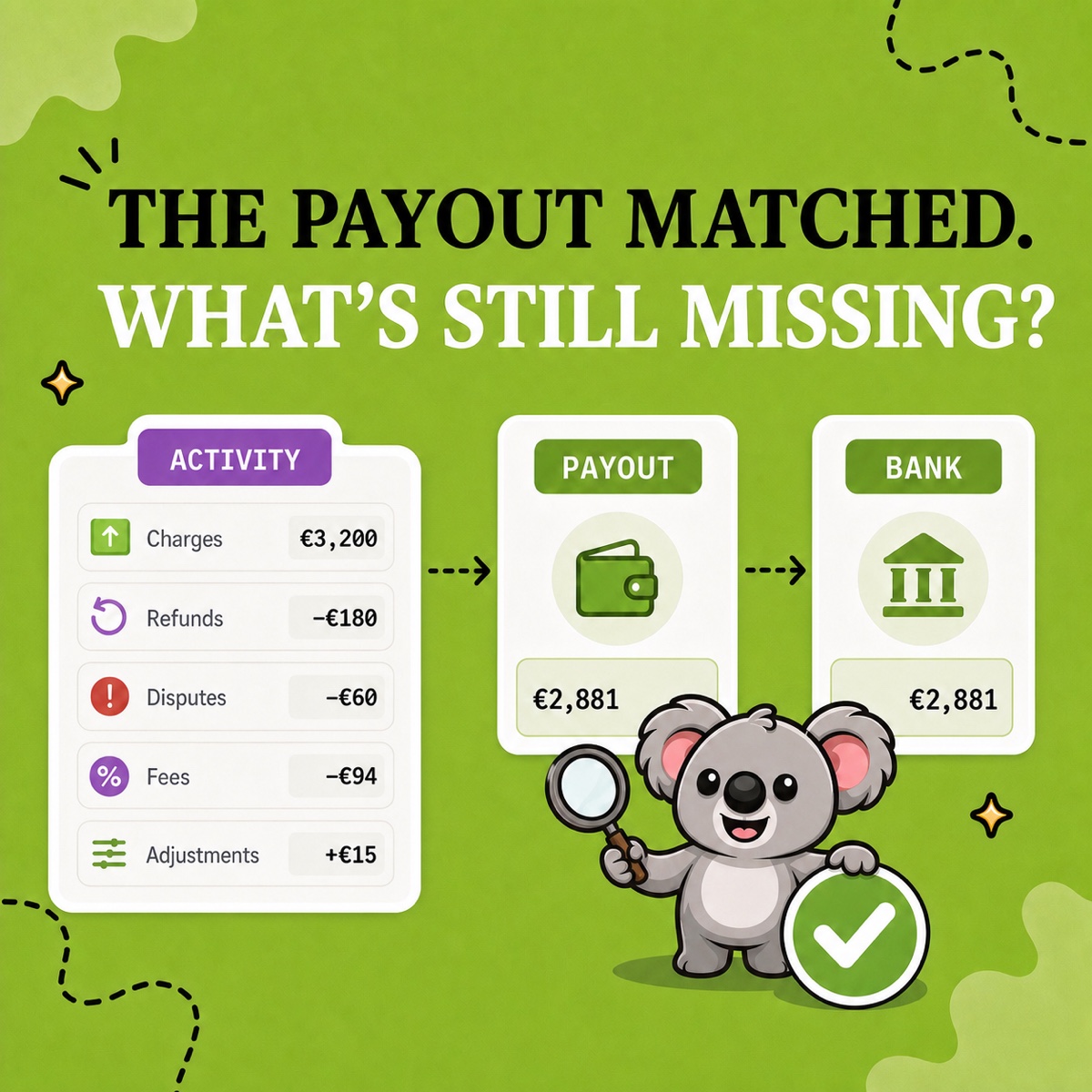

A customer sends an item back, you issue a full refund, and the next Shopify payout is lower than expected. If the books contain only the net bank receipt, the return, refund, original card fee, and any later dispute can collapse into one unexplained number. Finding the missing explanation costs time at every close and can hide a real expense.
LedgerLeaf connects the review through a saved sales export and Pro payout reporting. Keep the order reference visible, trace the money that moved, and give your accountant an explanation they can check.
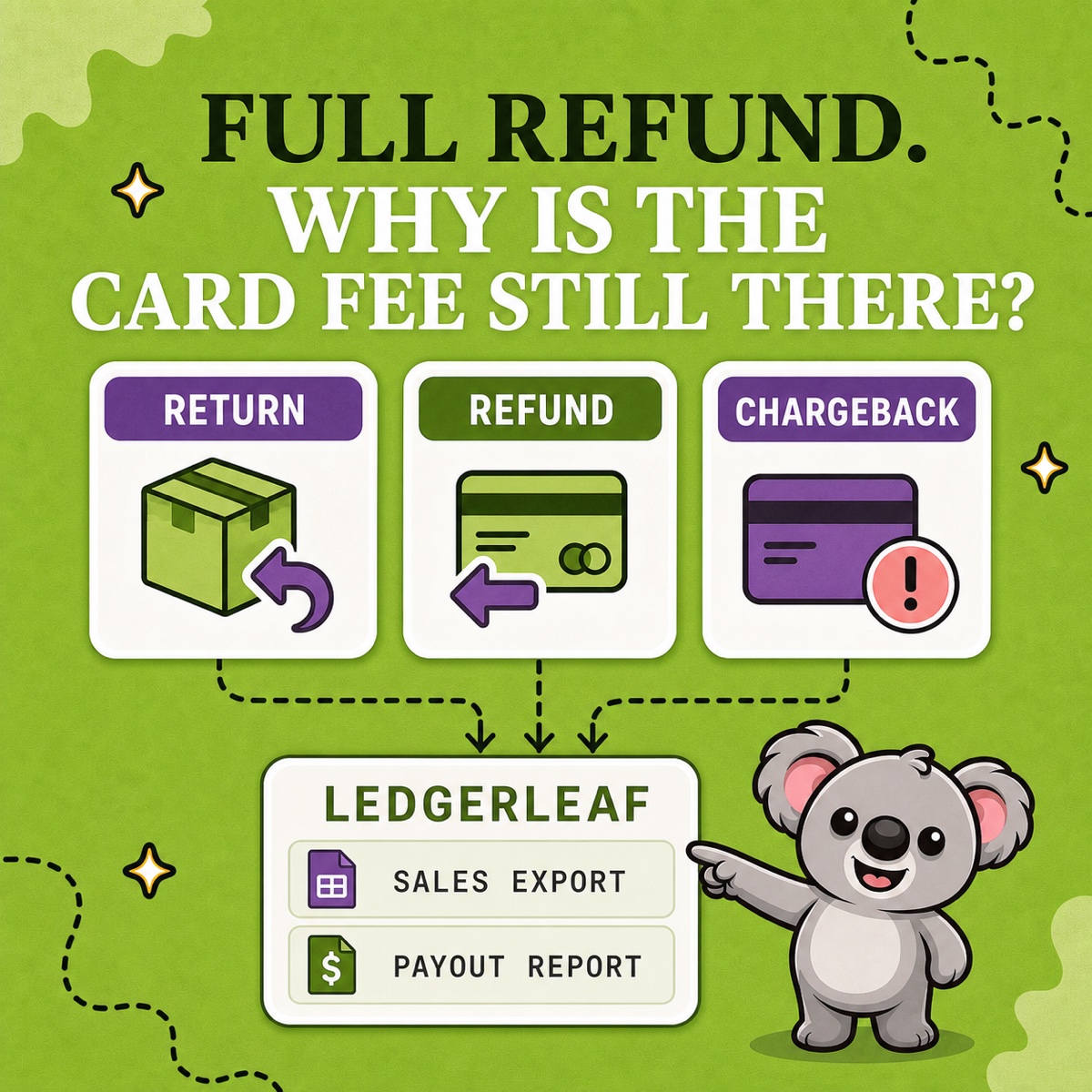
Separate the return, refund, and chargeback
These events answer different questions. Shopify’s returns guidance distinguishes the movement of goods from the repayment.
| Event | What changed | What belongs beside the LedgerLeaf exports |
|---|---|---|
| Return | A product came back | Item, quantity, condition, return date, and decision to restock, repair, or write off |
| Refund | You sent money back | Order reference, refund date, amount, tax and shipping detail, and payment evidence |
| Chargeback | The cardholder disputed a payment through their bank | Disputed amount, fee, reason, status, evidence deadline, and outcome |
A refund does not prove an item came back or became saleable stock. An open dispute does not establish the final loss. Keeping these distinctions beside the exported records prevents one status from standing in for three different decisions.
Why native Shopify exports leave gaps
Shopify’s order export includes a refunded amount, but that number alone does not explain which payout funded it or why a card fee remains. Shopify also documents differences between sales reports and current order totals. Treating either as a complete adjustment history can send you chasing the wrong difference.
A homemade spreadsheet adds another weakness. Deleting columns and replacing the original sale with today’s net amount can erase the explanation you need next month. LedgerLeaf saves your chosen sales columns inside Shopify and puts payout reporting in the same app, reducing repeated file preparation.
Follow one full refund through LedgerLeaf
Suppose an order is €120 and its original processing fee is €3.60. The customer later returns the item and receives the full €120. Assume one currency and no tax, shipping, conversion, or other order costs in this illustration.
1. Keep the original order identifiable
Open Sales in LedgerLeaf inside Shopify admin. In Edit filters, include the original order’s date and check the payment selection so it does not exclude refunded orders. A refund this month may belong to an older sale.
In Column presets, save a profile such as refund-review with the order name or ID, date, currency, sales amounts, payment detail, and tax fields your accountant needs. Check the affected order in the preview, then use Export XLSX or Export CSV. Retain the original file and the Shopify refund confirmation with its actual date.
2. Explain both payout effects
Open Payouts in Pro and export the supporting Shopify Payments records. Use the order reference and source payment details to trace the original charge, fee, and later refund. Compare like currencies and actual transaction dates, then match each affected payout to the bank.
| Movement to check | Effect in this example |
|---|---|
| Original €120 charge less €3.60 fee | €116.40 contributed to the first payout |
| Later full refund | €120 deducted from a later payout |
| Later batch otherwise ready to pay €1,000 | Bank receives €880 after this refund |
| Cash result attributable to this order | A €3.60 cost remains |
The €120 difference in the later batch is the refund, not another processing fee. Shopify’s refund rules confirm that the original card processing fee is not returned. Do not deduct the refund again if the sales figure you use already includes it.
Leafy’s Watch-Out
A payout can contain many orders. The €116.40 contribution is not necessarily a separate bank receipt. If available funds cannot cover the refund, Shopify’s handling can include a bank debit depending on location. Follow the actual records.
3. Add the stock decision or dispute outcome
Record whether the returned item is sellable, damaged, or awaiting inspection alongside the two exports. Your accountant should confirm inventory, tax, and posting treatment.
For a chargeback, use the same sales profile and Pro payout review to separate the disputed amount from the dispute fee. Keep the status and evidence deadline from Shopify with the files. When a case is won, check the later recovery against the payout records rather than assuming the initial deduction is permanent. Shopify’s chargeback guidance explains the response and recovery process. Other payment providers need their own statements.
Make the next refund easier to explain
Save the exports, bank match, refund or dispute evidence, and stock note together. Next close, reuse the LedgerLeaf column profile and update the filters. Setup stays inside Shopify admin without a separate account.
Free includes the reusable sales exports. Pro adds payout reporting for US$5.90 per month with a seven-day trial. Data Export IO starts at US$12 per month for Basic Shopify stores, with higher prices on other store plans. That is a higher recurring cost for this focused task. LedgerLeaf combines the saved sales layout and payout evidence for less, so an ordinary refund need not become another spreadsheet rebuild.
Try LedgerLeaf Pro with one refunded order during the seven-day trial.