
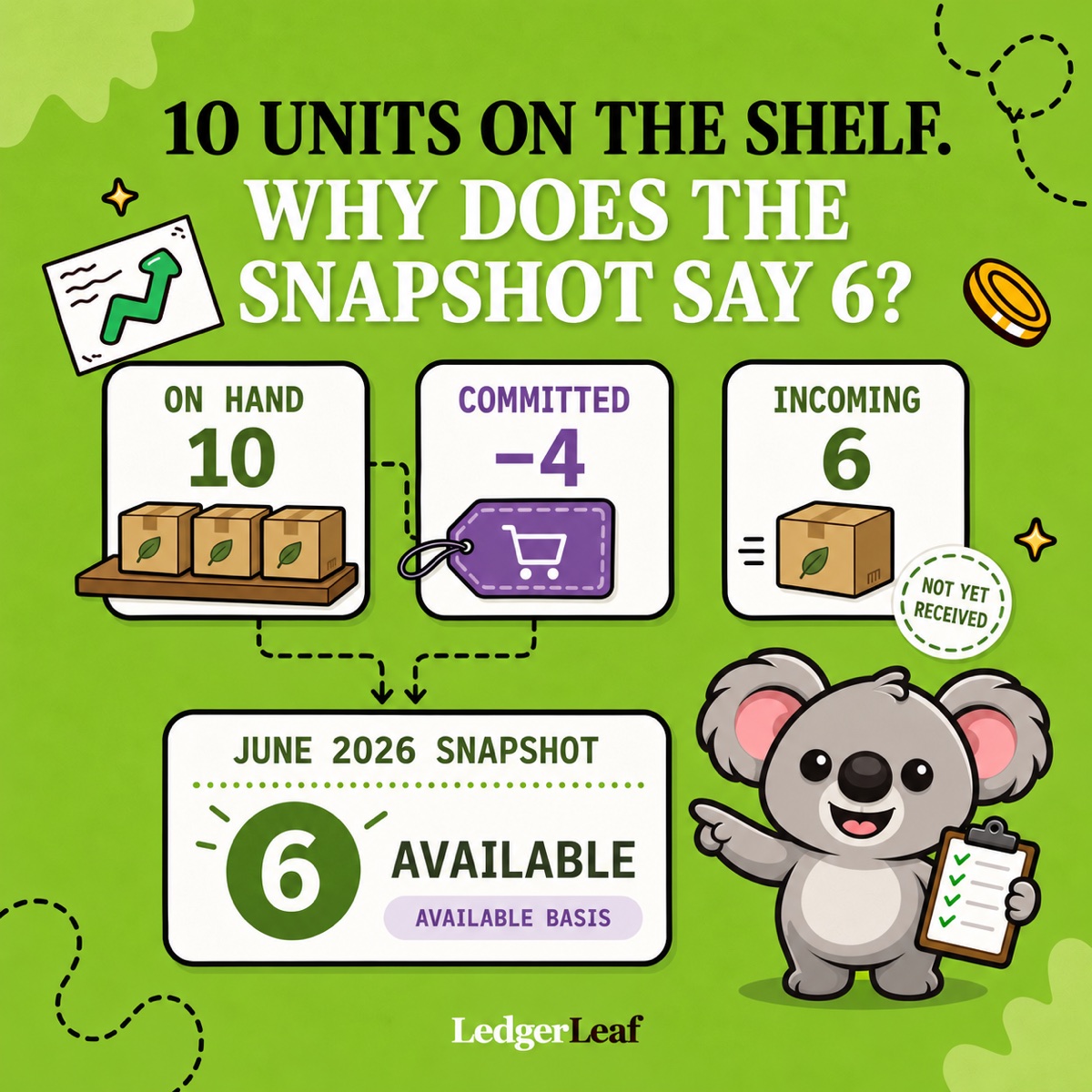
Ten units are on the shelf, four are committed to unfulfilled orders, and another six are incoming. Your June inventory snapshot says 6. A later report could say 10 for the same stock position. Mistaking that difference for a delivery or missing stock sends you chasing adjustments and delays the monthly close.
LedgerLeaf Pro brings inventory snapshots into your Shopify bookkeeping workflow. Use its snapshot as the stock record for your close, explain differences by SKU, and keep the supporting sales file alongside it. You get a handoff you can explain next month without piecing it together from changing screens.
What changed in Shopify’s month-end inventory reports
According to Shopify’s inventory report documentation, reports use On hand quantity from October 1, 2026. Earlier periods retain Available quantity.
On hand includes Available, Committed, and Unavailable stock. Incoming transfers remain excluded until received. Shopify’s inventory states therefore answer different questions about the same goods.
That change makes an unlabeled monthly spreadsheet a poor comparison tool. A rise in reported quantity might reflect the reporting basis rather than a restock. Shopify supplies the report, but the number alone leaves you to connect the cutoff, stock state, and supporting records.
Leafy’s Quick Answer
Keep the period and quantity basis with your LedgerLeaf snapshot. Compare like with like before treating a difference as stock movement. The six-unit snapshot in our illustration is the June example below, when Shopify reported Available inventory.
Why ten units produced a June snapshot of six
For SKU MUG-GRN-01, assume this stock position at the end of June 2026, with no unavailable units.
| Stock state | Units | What it tells you |
|---|---|---|
| On hand | 10 | Physically at the location |
| Committed | 4 | Reserved for unfulfilled orders |
| Available | 6 | Still available to sell |
| Incoming | 6 | In transit and not yet received |
June’s Available snapshot is 6, calculated as 10 less 4. With the same stock position under October’s On hand basis, the reported quantity is 10. The incoming six do not belong in either figure.
At an illustrative unit cost of $18, six units give $108 and ten give $180. That $72 difference shows why a quantity label matters before anyone uses the file for valuation. Confirm the appropriate quantity and cost treatment with your accountant.
Turn the difference into a LedgerLeaf month-end record
Open LedgerLeaf inside Shopify admin and use Pro’s inventory snapshot in the monthly review. There is no separate external account to manage. Work through the mug example with the snapshot and your supporting records in front of you.
- Identify the record. Keep the LedgerLeaf snapshot with a handoff note naming the month, cutoff, store time zone, locations, and quantity state used. This gives the next reviewer a clear starting point.
- Explain the mug quantity. For June, record six Available, four Committed, and six Incoming against
MUG-GRN-01. Attach the unfulfilled-order and transfer references to the handoff. The accountant can see why neither 10 nor 16 belongs in that June Available figure. - Support the order evidence. In LedgerLeaf Sales, use Edit filters for the relevant order scope, retain order references and product or SKU fields in Column presets, and export XLSX or CSV. Check older orders still unfulfilled at cutoff separately from the month’s new orders. A sales-date filter alone would miss them.
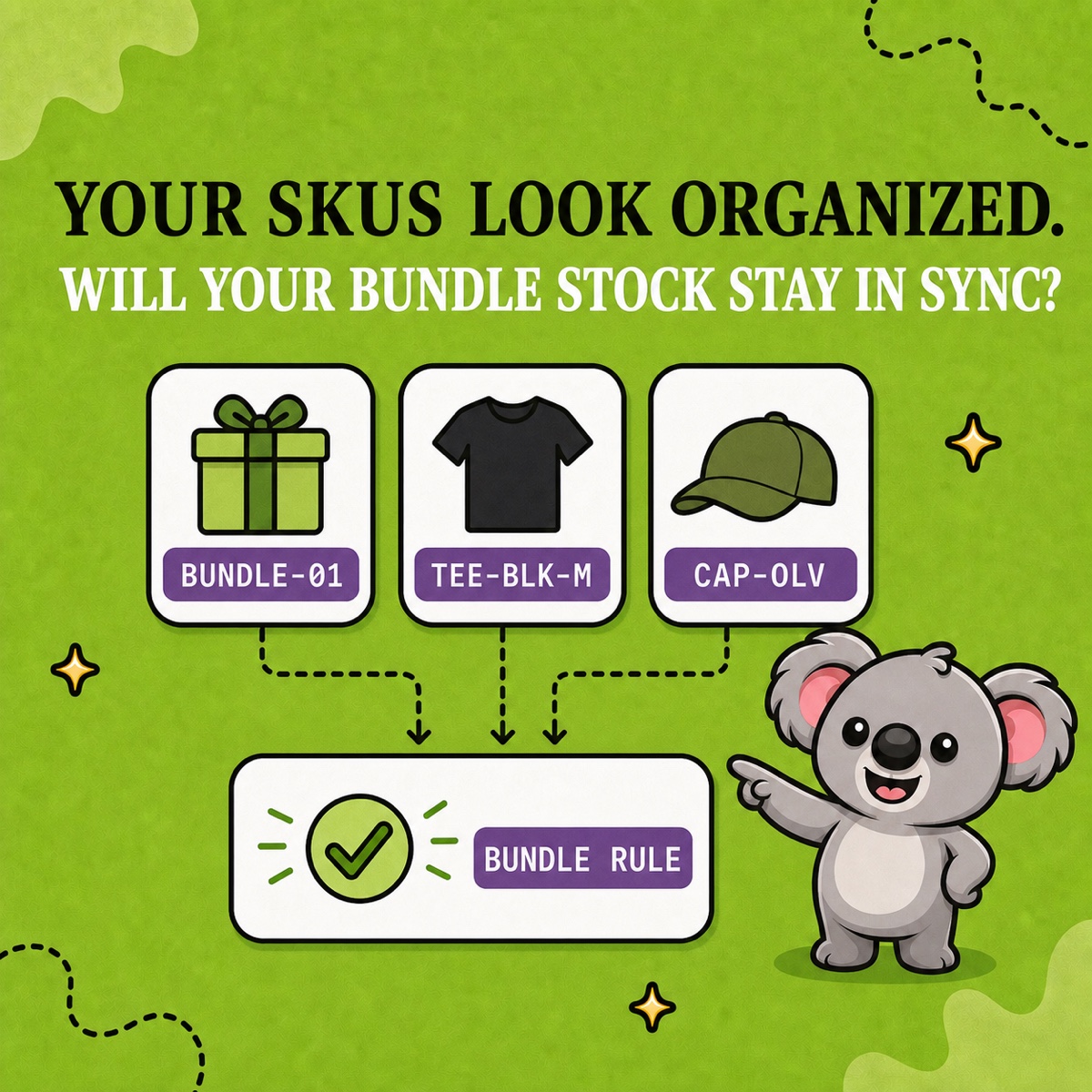
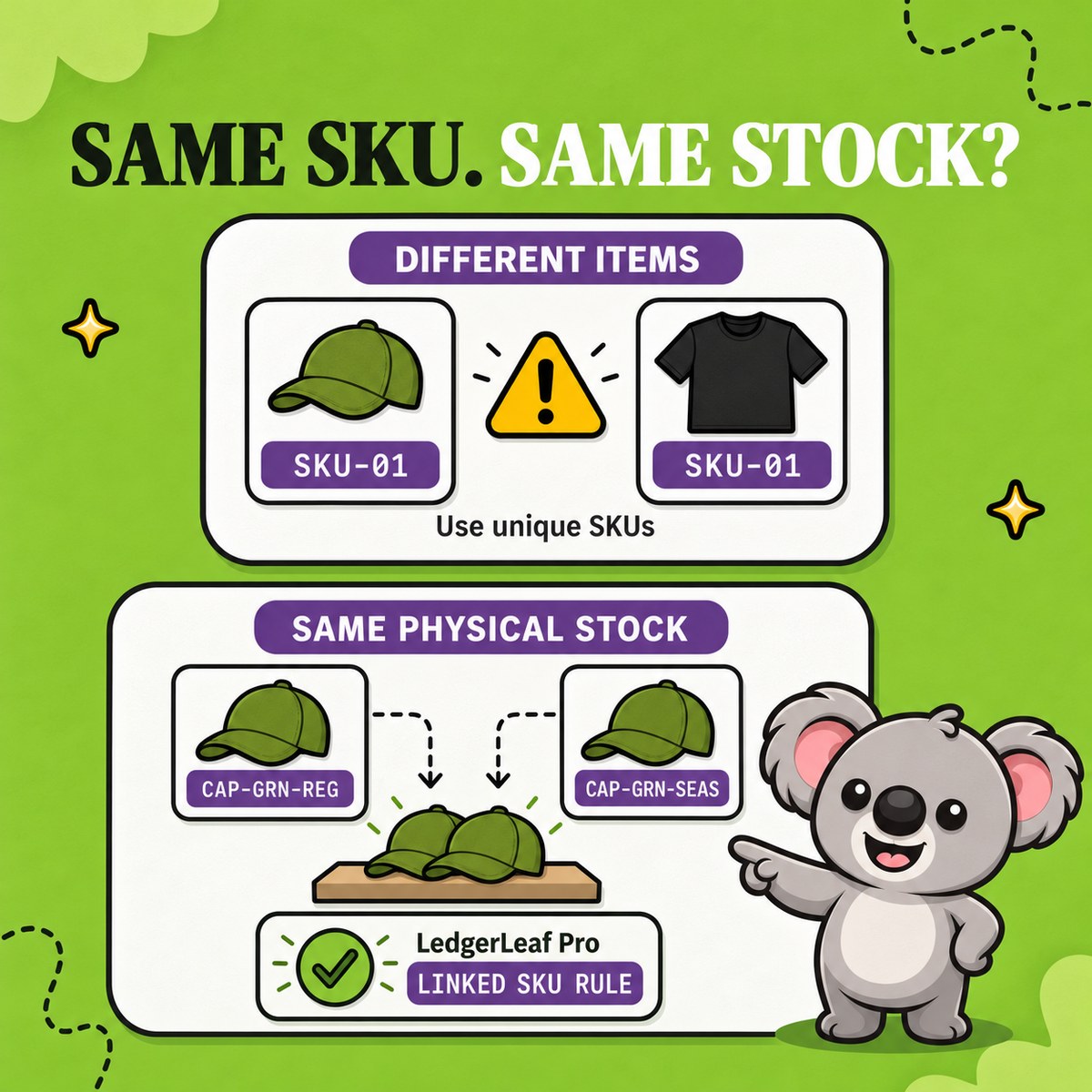
- Explain shared stock. If the mugs also appear in a gift set, keep the relevant LedgerLeaf SKU rule with the review. Two listings drawing on one physical pool are not two separate piles of mugs. This makes a potential double count visible before handoff.
Keep those notes with the saved files in your month-end folder. Next month, reuse the Sales column preset and the same review structure. LedgerLeaf supplies the inventory and sales evidence in one app, so you spend your attention on differences rather than rebuilding the file layout.
Resolve exceptions before handing over the snapshot
A negative quantity or missing SKU needs an explanation, not a tidier spreadsheet. Match the affected item to Shopify’s adjustment history, record the reason, and keep any correction with the LedgerLeaf snapshot. Avoid replacing the original evidence with an unexplained new total.
If a physical count finds nine mugs rather than ten, that is a separate one-unit discrepancy. It is not explained by June’s four committed units. Keeping the count note beside the snapshot stops two different issues being merged into one adjustment.
An easier close at a smaller monthly cost
A homemade spreadsheet leaves you maintaining layouts and checking copied figures. A broader reporting app can also mean paying for more than this close requires. Data Export IO starts at US$12 a month for Basic Shopify stores, with higher prices on other Shopify plans. LedgerLeaf Pro costs US$5.90 a month, including inventory snapshots and the supporting bookkeeping tools used here.
For a merchant who wants stock evidence and reusable sales files inside Shopify, that makes LedgerLeaf the simpler, better-value choice. Try the workflow on one month and one SKU before rolling it across the close.