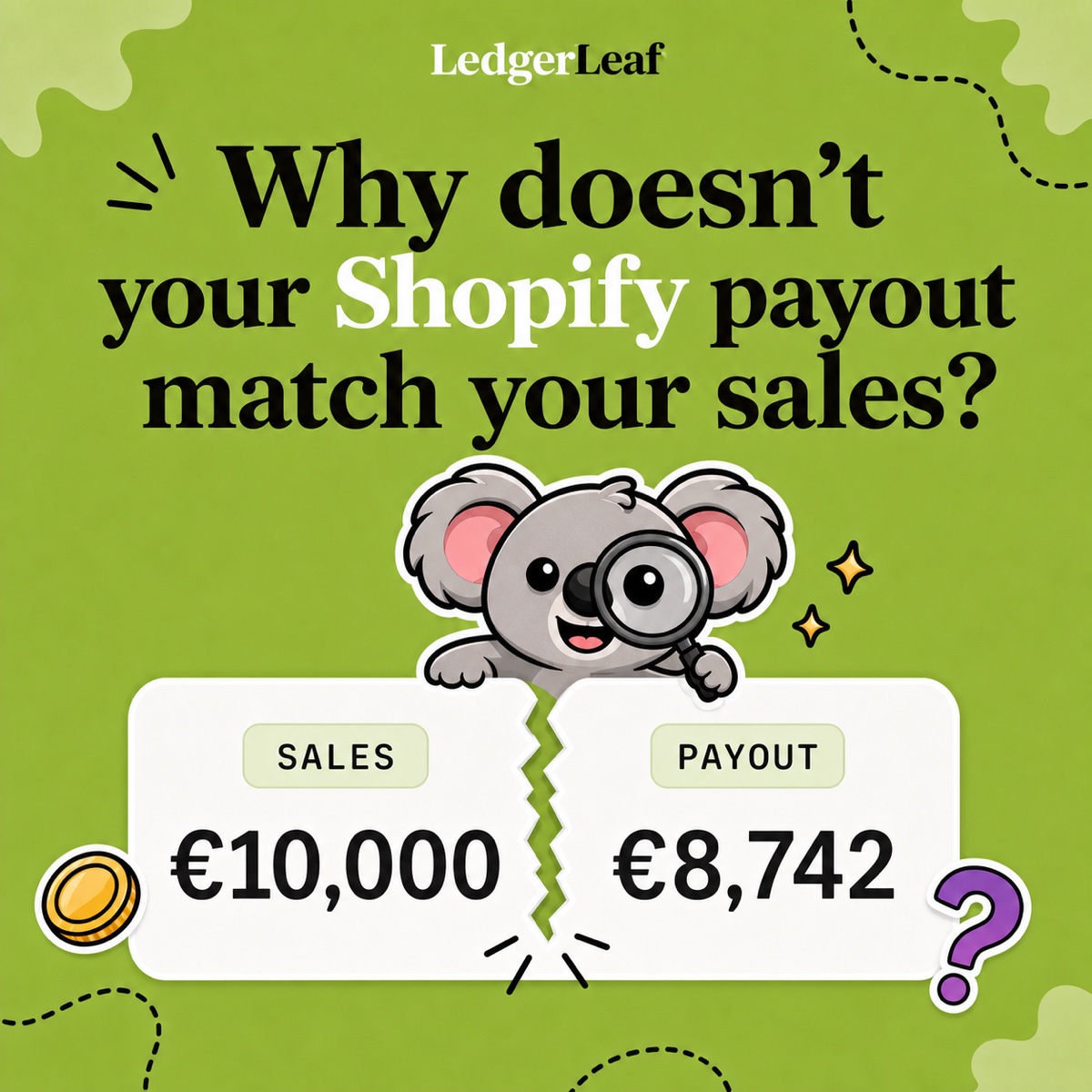


Your accountant asks for Shopify sales data, so you export orders and send the CSV. The next email asks which dates it covers, whether tax is included, what currency it uses, and how the total connects to the bank. Now you are reopening spreadsheets instead of running the store, and your accountant is spending time reconstructing the same answers.
LedgerLeaf gives that monthly request a repeatable starting point. Save the sales columns your accountant needs, export them directly to Excel or CSV, and use Pro reports to explain the tax and Shopify Payments figures beside them.
Why the standard Shopify export leaves work behind
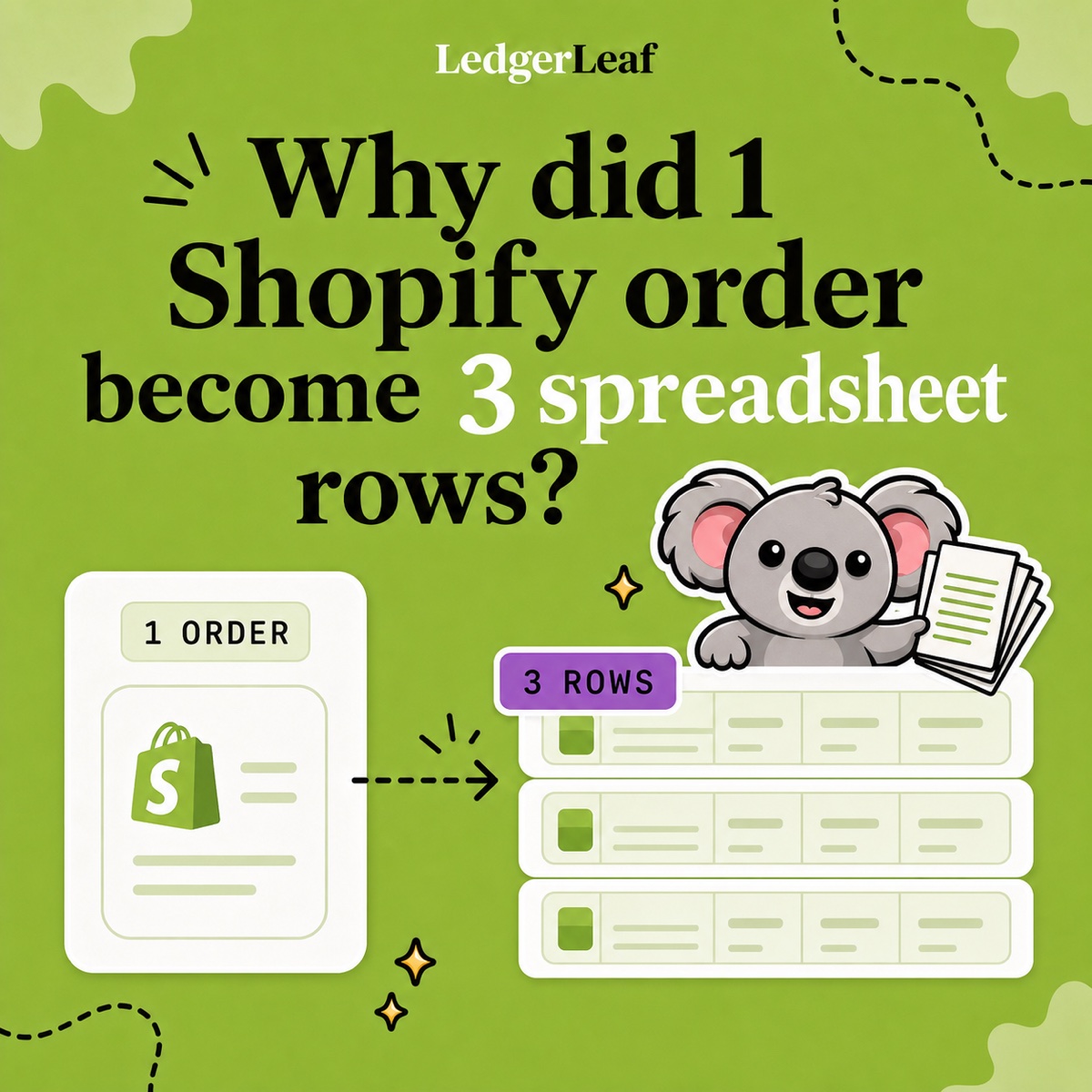
Shopify’s order CSV provides broad order information rather than your accountant’s agreed layout. Orders with several items span multiple rows. Counting those rows as orders or filling blank totals down the sheet can distort the figures.
The native export also leaves you to rebuild the column selection in a spreadsheet. A homemade template keeps that cleanup outside Shopify, where deleting a field or reusing last month’s filters is easy to miss. LedgerLeaf Free saves the column selection at the source and produces XLSX directly, so the approved layout does not depend on remembering every edit.
Prepare the monthly file in LedgerLeaf
Ask your accountant for a sample layout and agree the reporting period, store time zone, currency and treatment of refunds. These choices determine which records belong in the handoff. Your accountant should decide the accounting and tax treatment.
Open Sales inside LedgerLeaf in Shopify admin. Use Edit filters to set the agreed date range, payment scope and countries. Check Active filters before exporting. A paid-only selection, for example, needs review if the accountant also needs refunded or unpaid orders.
In Column presets, create a profile such as monthly-accountant-handoff. Use the agreed field list to keep the following information visible.
| Question the file must answer | Information to retain |
|---|---|
| Which transaction is this? | Order name or ID and date |
| Which money is being measured? | Currency and sales amounts |
| How much is tax? | Tax amounts and destination detail where needed |
| Where did payment go? | Payment status, method and references where available |
| Does the accountant need product detail? | Item, quantity and SKU where required |
Check Total orders and Rows in preview separately in Sales overview. They measure different things. Review a known order in the preview, then choose Export XLSX for an Excel workbook or Export CSV for the recipient’s import process. Save the original file unchanged.
The next month, reuse the column profile and update the filters. Saving columns does not remove the need to check the new period. It removes the repeated job of rebuilding the accountant’s layout.
Show why €93 in the bank is not €93 of sales
Suppose one illustrative order is €120, including €20 tax. A partial refund returns €24, including €4 tax. The processor deducts €3 in fees and pays out €93. Assume one currency, all movements in the same period and no other adjustments.
Use the order reference from your LedgerLeaf sales export to connect the sale to the refund and payment evidence. Open Payouts in Pro and export the supporting Shopify Payments records for review alongside the sales file.
| Evidence in the handoff | Amount |
|---|---|
| Original customer charge | €120 |
| Refund to the customer | €24 |
| Customer funds after the refund | €96 |
| Processing fee | €3 |
| Bank deposit | €93 |
For this example, sales excluding tax after the refund are €80 and remaining tax is €16. The €93 deposit is neither figure. Giving the accountant just that deposit would hide the refund, fee and tax distinction. If an exported total already includes the refund, do not deduct it again.
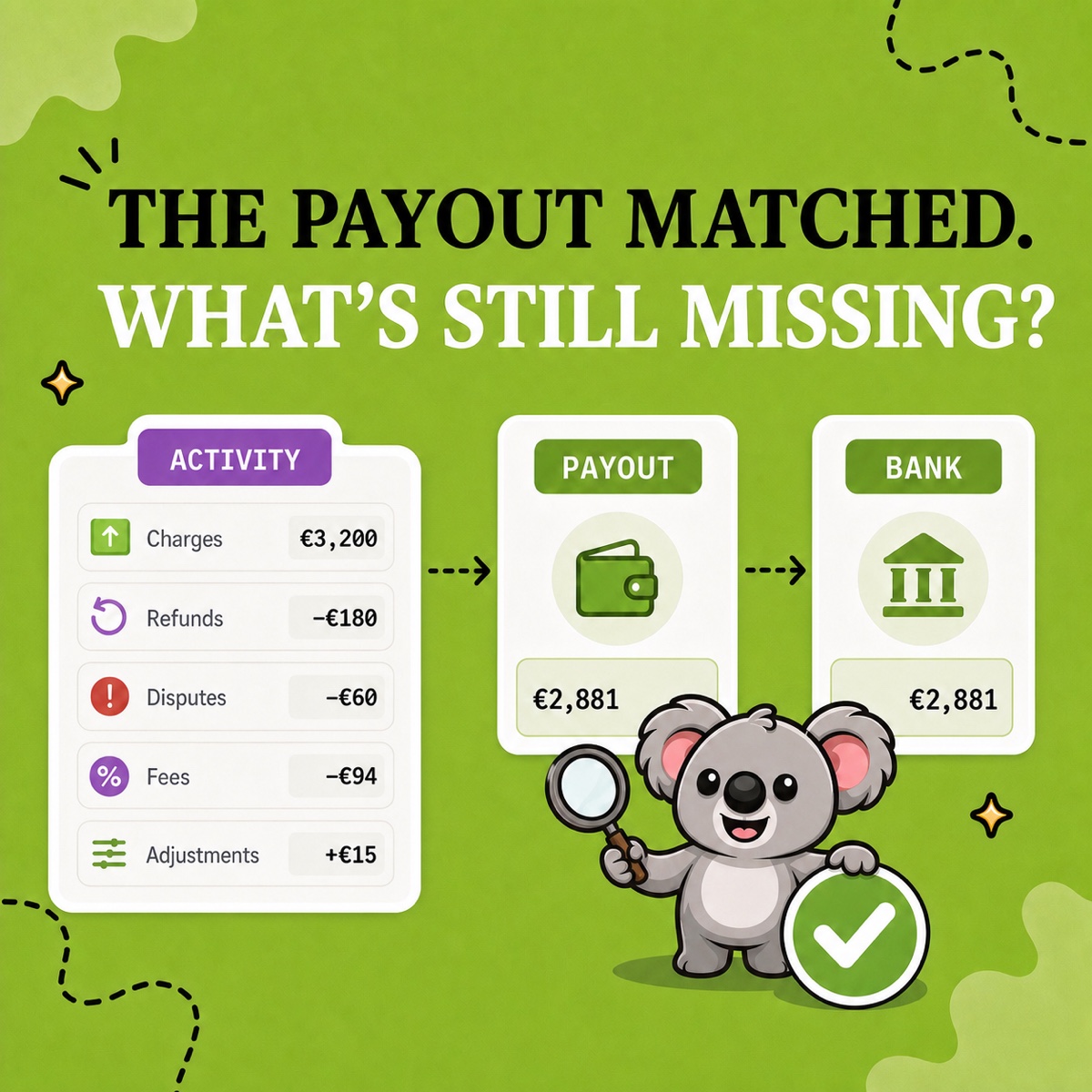
Shopify’s Payments activity report also distinguishes payment activity from revenue. Keeping LedgerLeaf’s sales and payout exports together gives your accountant the underlying records to investigate a difference rather than another unexplained total.
Complete the handoff without burying the useful files
Add Pro tax or VAT/OSS exports if country and rate detail is requested, and Pro inventory snapshots plus product-cost records if stock is in scope. Third-party gateways need their own statements. Keep Shopify bills and bank statements alongside the exports, with a short note on dates, currencies and unusual refunds or payout timing.
LedgerLeaf works inside Shopify admin without a separate account. Free covers the saved sales profile and CSV/XLSX files. Pro adds payout, VAT/OSS and inventory reporting for US$5.90 per month.
Data Export IO starts at US$12 per month for Basic Shopify stores, with higher prices for other store plans. That recurring cost is harder to justify for this handoff when LedgerLeaf offers the reusable sales export free and the supporting Pro reports for less. You can prepare the agreed file first and add the reports when the accountant needs them.
Create your accountant’s sales profile with LedgerLeaf Free.