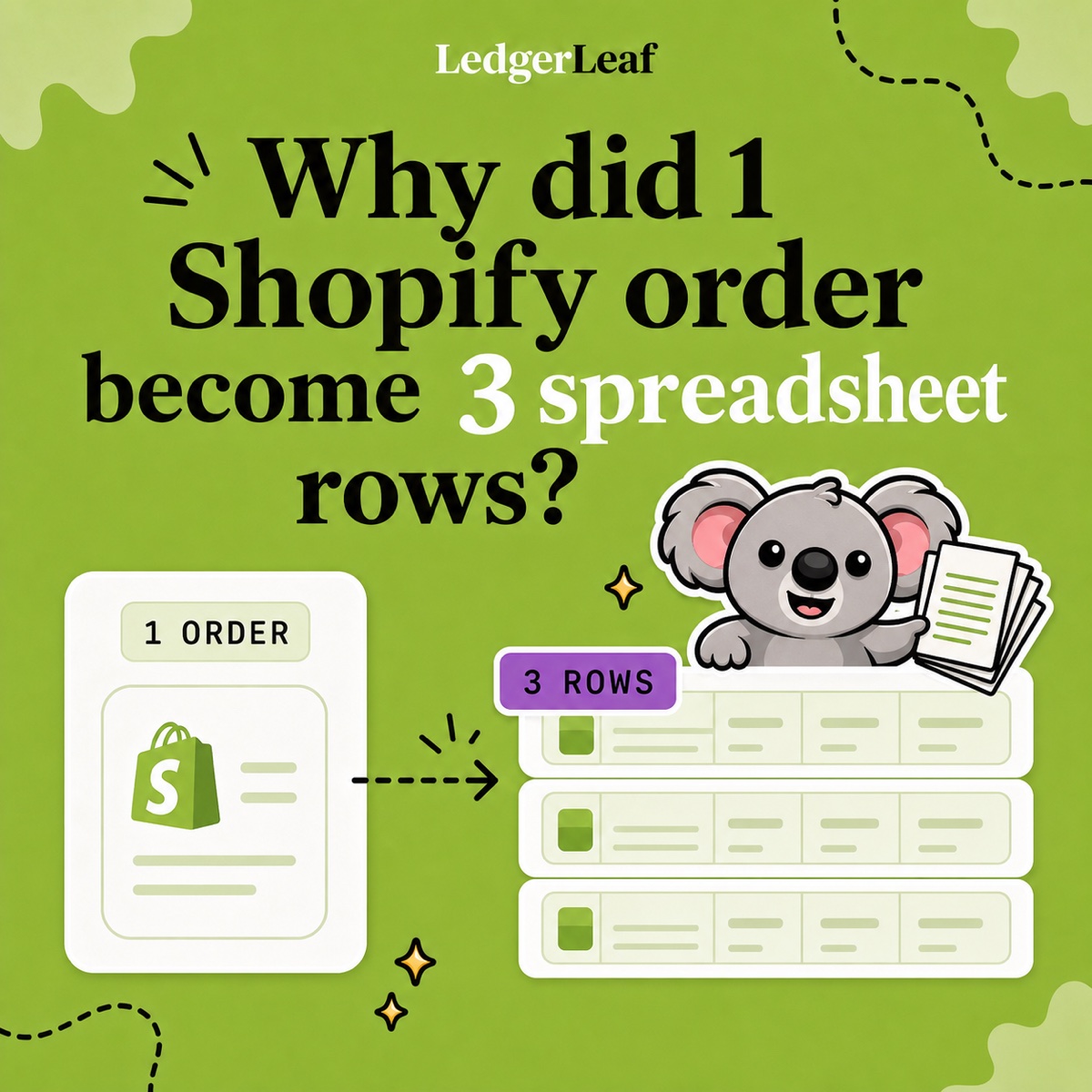

Your accountant asks why the tax total changed, and you have four Shopify reports open. One shows the total, another splits it by region, and a third contains the refund. Sending them all without an explanation means more questions, more spreadsheet work, and a slower handoff.
The right Shopify report answers a specific question. LedgerLeaf Pro gives you a practical way to review the country and rate breakdown, investigate differences, and export the evidence from Shopify admin. You can explain the number before your accountant has to ask again.
Which Shopify tax report do you need?
Keep this distinction from Shopify’s tax report guide in mind when checking your LedgerLeaf results.
| Your question | Relevant Shopify report |
|---|---|
| Which tax names and rates make up the total? | Taxes finance report |
| What was collected by US jurisdiction or Canadian province? | United States or Canada sales tax report, if eligible |
| Which sale or refund changed the tax? | Total sales by order |
| What domestic tax did Global-e pay to my store? | Managed Markets taxes, for qualifying Canada or UK stores |
The Taxes finance report is a summary. It does not give you the order story behind every difference. Regional reports add detail but have eligibility restrictions. Shopify’s finance report documentation also specifies a one-month maximum for US and Canada sales tax CSV exports. Managed Markets taxes covers a specific Global-e arrangement, not all international sales.
These separate views leave you doing the work of keeping dates, scope, and supporting files aligned. A homemade spreadsheet adds another weak point when its formulas or filters change between periods. For recurring EU VAT review, LedgerLeaf’s dedicated workspace is a more direct starting point.
Review the period in LedgerLeaf
Open Taxes & VAT in LedgerLeaf Pro. The review stays inside Shopify admin, with no separate external account to set up.
1. Make the boundaries visible
Use Edit filters to choose the period, payment status, and EU OSS destination scope when relevant. Check the Active filters before reading the totals. An all-store figure and an EU OSS destinations-only figure answer different questions, even when their dates match.
In Tax overview, check the displayed period and orders in scope. This gives you a quick way to catch the wrong selection before sending a file. Record these choices with your export so your accountant knows what the numbers cover.
2. Explain the total by country and rate
Use Country VAT breakdown and the rate detail to see how the total is built. Imagine a simplified euro-only period with these reviewed taxable sales, excluding shipping and any other rates or adjustments.
| Country | Taxable sales after the reviewed refund | VAT rate | VAT |
|---|---|---|---|
| Germany | €6,000 | 19% | €1,140 |
| France | €5,200 | 20% | €1,040 |
| Total | €11,200 | €2,180 |
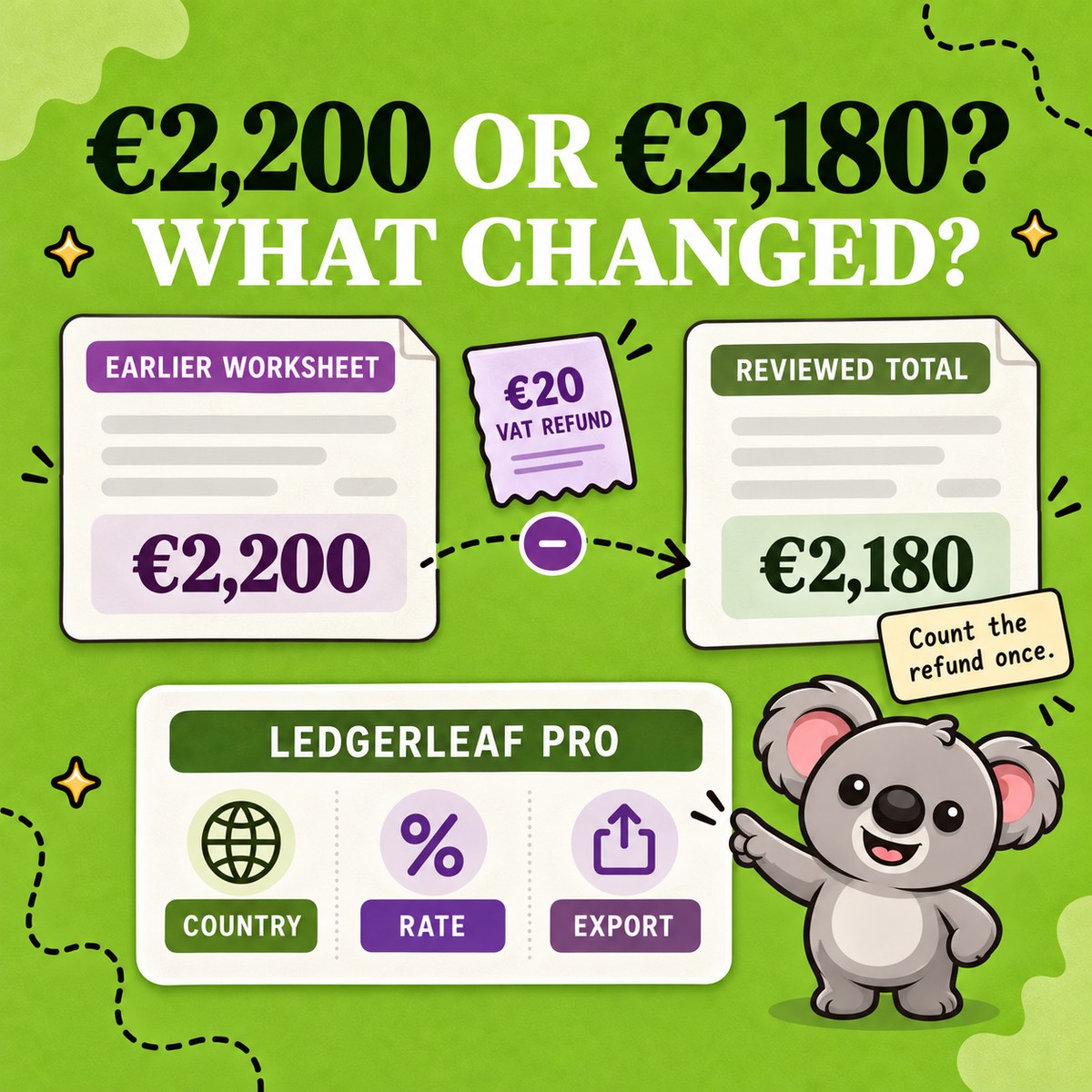
Your accountant’s earlier worksheet shows €2,200. The useful question is now which country explains the €20 difference, rather than whether the entire report is wrong.
In this example, the transaction evidence exported from LedgerLeaf shows a French refund of €100 net plus €20 VAT. The earlier worksheet still has €5,300 of French taxable sales and €1,060 VAT. That refund explains the difference. Confirm the sale and refund dates and their treatment with your accountant. For a refund on an older order, include its original-period evidence rather than assuming the current selection captures it.
Leafy’s tip
If the reviewed €1,040 already includes the €20 refund, subtracting it again produces €1,020 and understates French VAT. Keep the transaction evidence beside the country summary so the same adjustment is counted once.
3. Send evidence that answers the question
Use Export report XLSX for the tax workbook or Export CSV for transaction review. For the relevant OSS scope, Export OSS by country CSV supplies the country export. Keep the selected period, filters, and refund note with those files.
Your accountant receives an explained €2,180 total, its country and rate breakdown, and the evidence behind the €20 change. Next period, repeat the same review in LedgerLeaf instead of reconstructing how a spreadsheet produced its answer.
A simpler route at a lower monthly cost
General reporting apps can cost more than this job warrants. Data Export IO starts at US$12 per month for Basic Shopify stores, with higher prices for other Shopify plans. Paying for a broad report builder is poor value when your immediate need is a focused VAT review and handoff.
LedgerLeaf Pro’s listed price is US$5.90 per month, including VAT and OSS reports, payout reports, and inventory tools. Its ready-made tax views let you begin with the review itself. The seven-day trial lets you work through a real period before committing.
Reports support preparation. Your accountant or tax authority determines registration, filing obligations, and tax treatment.
Start LedgerLeaf Pro’s seven-day trial and review your latest tax period.