
A customer checks out in dollars, your store reports in euros, and Shopify sends payouts to more than one bank account. The numbers can all be correct and still look impossible to reconcile when three different currency roles are mixed together. You lose time chasing exchange differences that may actually be fees or money still waiting to reach the bank.
LedgerLeaf brings payout reporting and reusable sales exports into Shopify admin. Start with its Pro payout records, explain each deposit in the currency the bank received, and keep the supporting order detail beside it. That gives your accountant a bank reconciliation they can check without rebuilding your files.
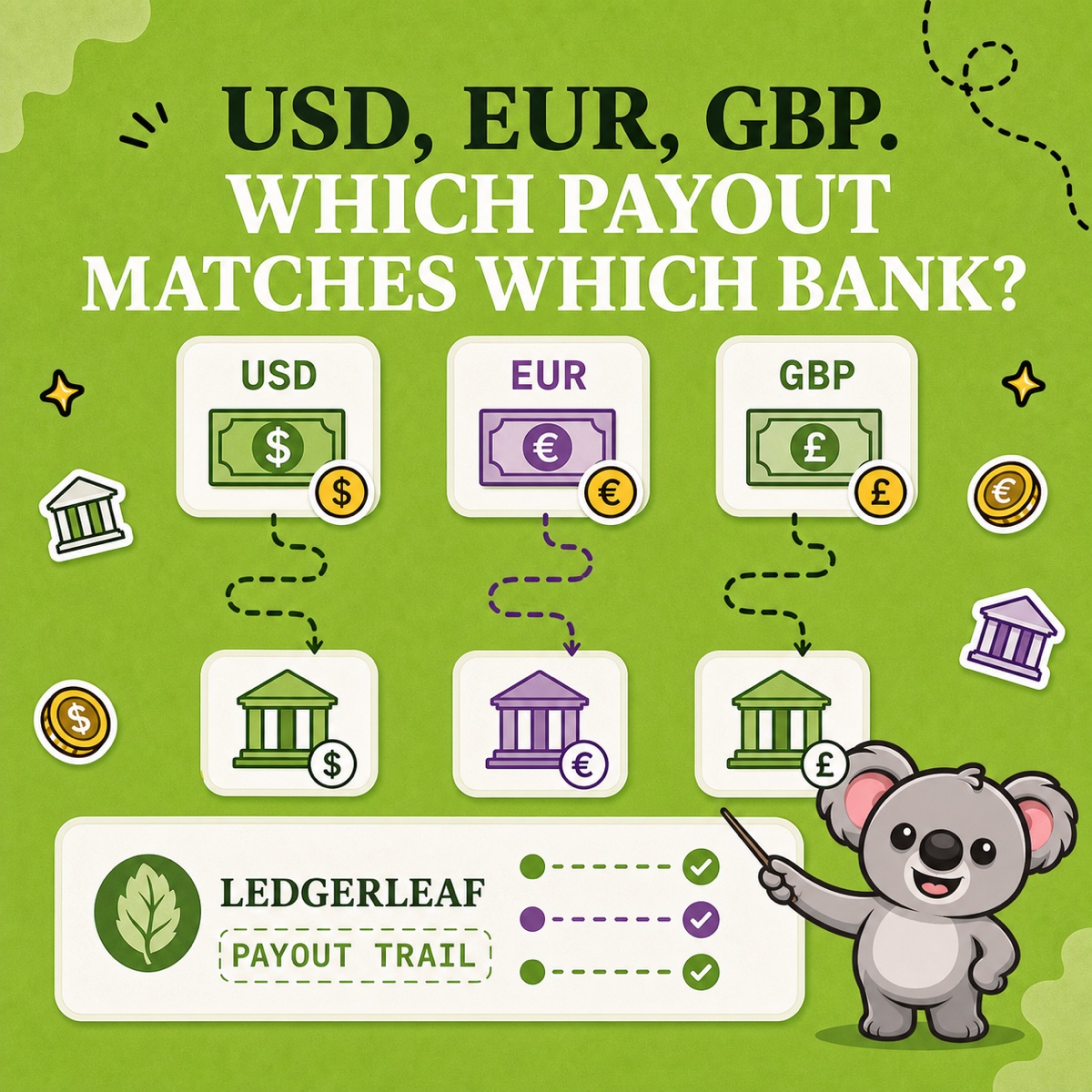
Separate the three currency roles
- Presentment currency is the currency the customer used at checkout.
- Payout currency is the currency Shopify sends to your payout bank account.
- Bookkeeping currency is the currency used for your accounts.
Selling in several currencies does not always mean receiving several payout currencies. Shopify’s Multi-Currency Payouts guidance requires an eligible Advanced or Shopify Plus store, region, and bank account. If Shopify pays only EUR, reconcile EUR payouts even when customers paid in USD. If it pays EUR, USD, and GBP into dedicated accounts, keep each currency separate.
Shopify’s native tools split deposit details, period activity, and sales across different views. A converted sales total cannot explain a particular bank receipt. A homemade spreadsheet makes things worse if its formula adds dollars to euros or overwrites the original amounts. LedgerLeaf keeps the payout review and your saved sales profiles in one app, so preparing the next handoff takes less repeated work.
Follow a USD payout through LedgerLeaf Pro
Suppose a euro-based business receives USD payouts into a USD bank account. The following amounts are illustrative, not Shopify fee rates.
1. Start with the payout records
Open Payouts in LedgerLeaf Pro inside Shopify admin and export the Shopify Payments payout data for your review. Identify the USD payout you are matching and retain its reference and date with the file. Keep EUR and GBP records out of the USD calculation.
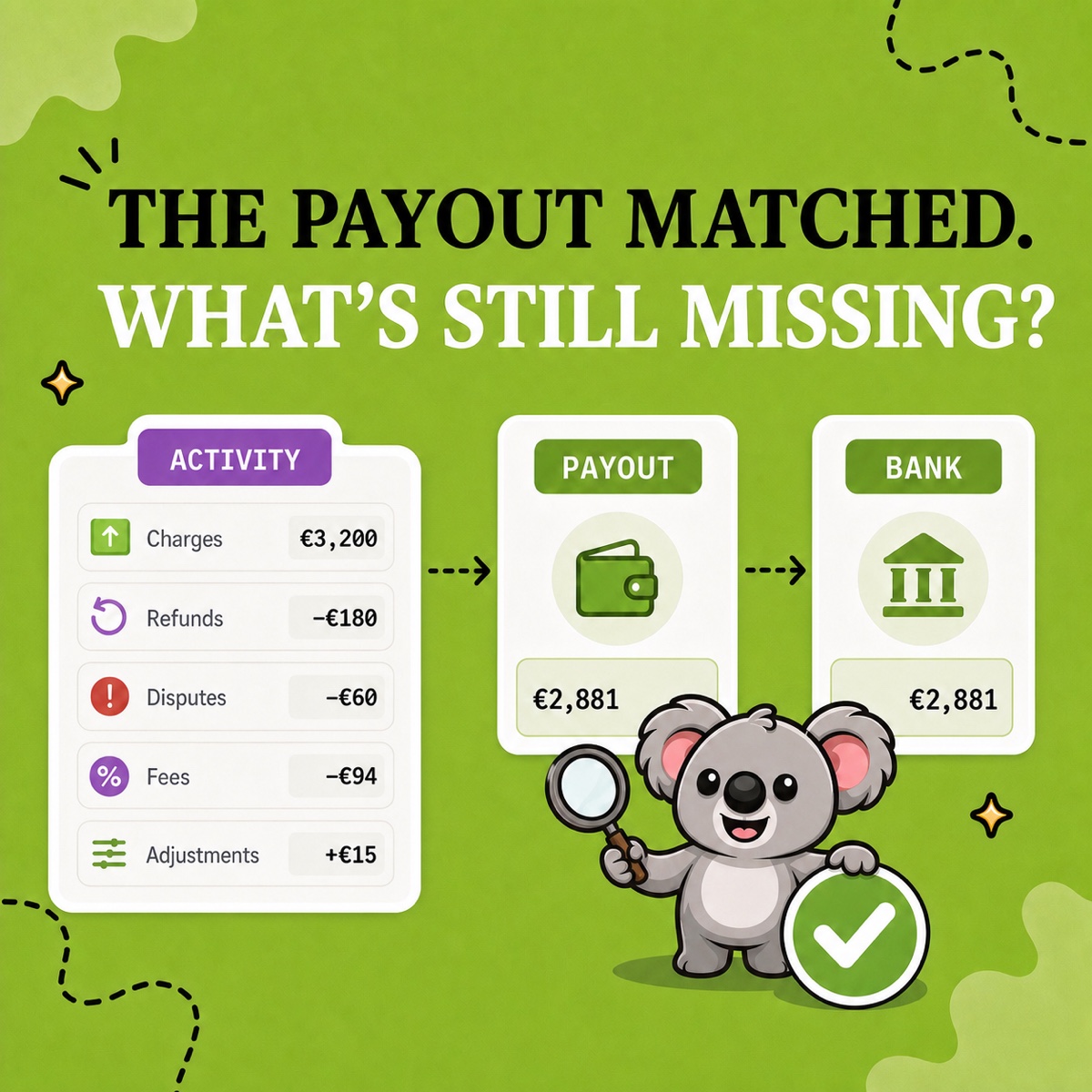
Use the exported evidence and the source payout details to explain the deposit. Check the charges, refunds, fees, and any adjustments included in that payout rather than assuming every sale in the month belongs to it.
| USD payout activity | Amount |
|---|---|
| Customer charges | $10,000 |
| Refunds | −$300 |
| Processing fees | −$200 |
| Multi-Currency Payout fee | −$15 |
| Net USD payout | $9,485 |
| USD bank receipt | $9,485 |
If you subtract only refunds and processing fees, you expect $9,500. The extra $15 deduction explains why the bank received $9,485. It is a payout fee, not an unexplained exchange loss. Shopify can charge a non-domestic payout fee even when the customer pays and the bank receives the same currency. Use the actual fee shown for your store.
2. Keep the sales evidence reusable
For an order your accountant needs to investigate, open Sales in LedgerLeaf. Use Edit filters to include the original order date, which may be earlier than the payout period. In Column presets, retain the order name or ID, date, currency, payment details, and relevant sales and tax amounts. Save a profile such as currency-review and use Export XLSX or Export CSV.
The saved columns preserve the order references needed to connect a question about the payout to its sale. Next month, reuse the profile instead of deleting unwanted columns again. Keep source payment details beside it when the checkout and payout currencies differ.
3. Explain anything crossing month-end
A payout sent at month-end can reach the bank next month. Record its reference, amount, currency, and expected bank account beside the LedgerLeaf export, then confirm the later receipt. Do not label a missing deposit as an exchange difference just to close the month.
Shopify’s Payments activity report provides a separate period check for each payout currency. Retain it with the LedgerLeaf files and bank statement to explain the opening balance, activity, payouts, and closing balance.
Keep a later bank conversion separate
Suppose the bank later converts the $9,485 at €0.90 per dollar. That produces €8,536.50 before a separate €10 bank charge, leaving €8,526.50. The original Shopify payout still matched at $9,485. Forcing the euro receipt into that USD match would mix a bank fee and a later conversion into an already explained payout.
Keep the bank conversion record with the reconciled LedgerLeaf evidence. Your accountant can then apply the appropriate exchange rates, posting dates, and exchange-difference treatment. This is a reconciliation example, not a rule for translating all sales at the payout date.
A simpler monthly review at a lower price
LedgerLeaf works inside Shopify without a separate account. Pro costs US$5.90 a month and includes payout reporting alongside saved sales exports. Data Export IO charges US$35 a month for Advanced Shopify and US$50 for Plus. That is a higher reporting bill on the plans eligible for Multi-Currency Payouts. For this export-and-review workflow, LedgerLeaf offers the records you need at a much lower monthly cost.
Try LedgerLeaf Pro’s seven-day free trial on your next payout.