
A Shopify payout lands in your bank account, so you record it as sales. The bank reconciles, but your revenue now includes collected tax and hides payment fees. Your accountant has to untangle it before the month can close.
A chart of accounts gives each amount its own destination. LedgerLeaf makes that structure practical by keeping reusable sales exports and the supporting payout, tax, and inventory records in Shopify admin. You can hand over the same clear categories each month instead of rebuilding a spreadsheet.
Give each account a LedgerLeaf source
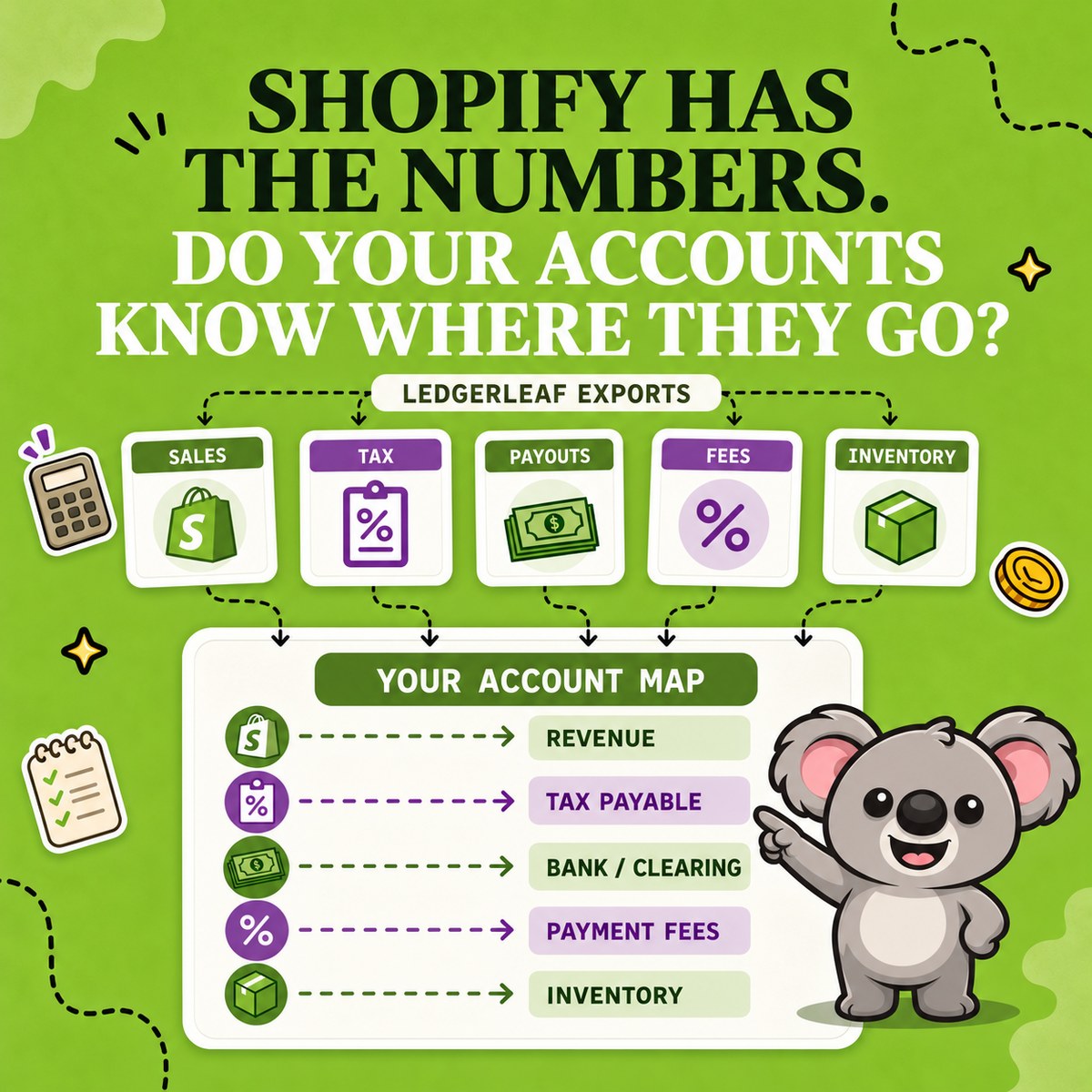
Keep your existing business-wide chart. Agree the account names and numbering with your accountant, then use this map to prepare the Shopify records that feed it.
| Account | What belongs there | Supporting record |
|---|---|---|
| Product sales | Product revenue before discounts and returns | LedgerLeaf Free sales export |
| Sales discounts and sales returns | Separate reductions of product revenue | Same sales export with the relevant detail |
| Shipping income | Delivery charged to customers | Same sales export |
| VAT or sales tax payable | Collected tax owed to the tax authority | Sales export and Pro tax review |
| Shopify Payments clearing | Funds passing through Shopify Payments | Pro payout report |
| Payment processing fees | Fees deducted from payment activity | Pro payout report |
| Bank | Money actually received | Payout record and bank statement |
| Inventory and cost of sales | Stock held and the cost assigned to units sold | Pro inventory snapshots and purchase records |
| Shopify and app expenses | Subscription, app, and related operating charges | Shopify bills |
Gift cards, store credit, other gateways, and chargebacks may need additional accounts. Add them when your store uses them. Your accountant should confirm tax treatment, recognition dates, and inventory entries for your business.
Shopify’s finance reports separate sales components, but the native workflow still leaves you assembling different reports into an accountant’s file. A copied account template does even less. It names the destinations without making next month’s source data easier to prepare.
Prepare the sales file once
Open Sales in LedgerLeaf Free and use Edit filters to select the agreed period. Check the payment filter with your accountant. Paid orders alone may not capture everything needed for your accounting method.
Choose the order identifiers, dates, currency, sales, payment, and tax fields needed for the map. Keep gross sales, discounts, returns, shipping, and tax distinguishable in the handoff. Save the selection under Column presets with a name such as Monthly bookkeeping, then export CSV or XLSX.
Keep the account map beside that saved profile. Your accountant can see which source amounts support each account, and you can reuse the agreed columns next month. LedgerLeaf saves the export setup. The account mapping and posting remain part of your bookkeeping process.
Follow one month’s amounts into the accounts
Imagine your LedgerLeaf sales file supports these illustrative figures for one currency. All payments and refunds went through Shopify Payments and settled in the same month. There are no opening balances, holds, unpaid orders, gift cards, or other adjustments.
| Sales component | Amount | Account destination |
|---|---|---|
| Gross product sales | €1,000 | Product sales |
| Discounts | €100 | Sales discounts |
| Product returns | €50 | Sales returns |
| Shipping after any refunds | €30 | Shipping income |
| Tax after any refunds | €176 | Tax payable |
Product revenue after discounts and returns is €850. Add €30 shipping and €176 tax, and the net customer funds are €1,056. The tax amount is an example, not a recommended rate.
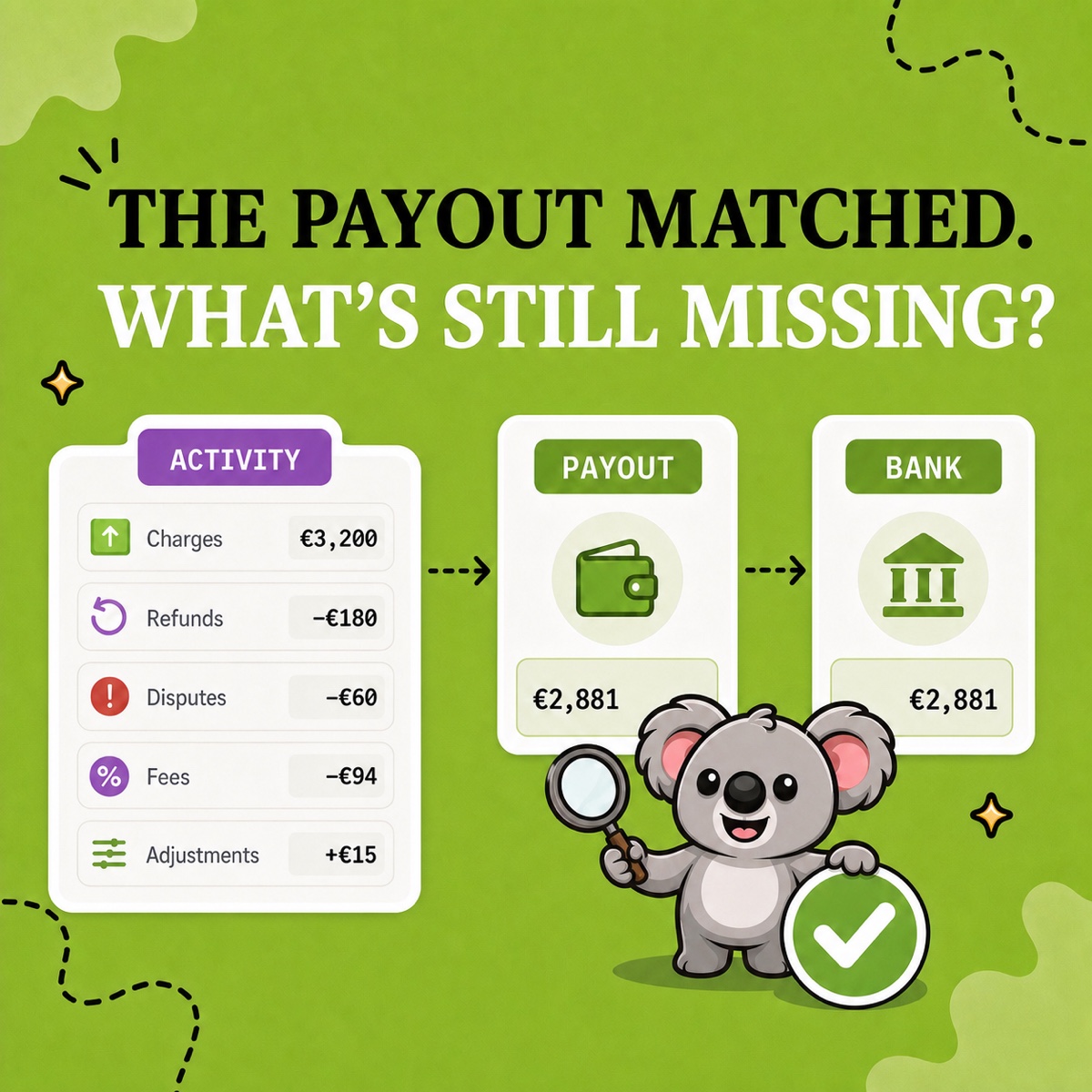
Now open Payouts in LedgerLeaf Pro and review the corresponding activity. Suppose fees are €26 and the bank receives €1,030. Those records explain where the €1,056 went. Clearing is reduced by both the fee and the payout, leaving no balance under these assumptions.
Booking the €1,030 deposit as revenue would overstate the €880 product and shipping revenue by €150. The sales export explains revenue and tax. The payout export explains fees and the bank transfer. Do not deduct the same refund again when using the payout records.
Shopify also states that its Payments activity report is not a revenue statement. If real payments settle next month, keep the explained amount in clearing rather than forcing the accounts to match the deposit.
Keep the next close simple and affordable
Reuse the sales profile, update the period, and retain the Pro payout and tax exports with the same account map. Pro’s country and rate views let your accountant review tax detail without creating a general-ledger account for every country.
For inventory, keep Pro snapshots with purchase and cost records. A stock quantity alone is not a cost-of-goods-sold entry. Shopify’s inventory reports also rely on cost and inventory data. Add Shopify bills for operating expenses.
LedgerLeaf keeps this preparation easy inside Shopify admin with no separate account. Sales profiles are free. Pro costs US$5.90 a month. By comparison, A2X Mini costs US$29 a month for up to 200 orders. Paying for its accounting integrations is an expensive route if your accountant only needs organised files. For this export-and-review routine, LedgerLeaf gives you the relevant records at a much lower monthly cost.
Try LedgerLeaf Pro’s seven-day free trial with your next monthly account map.