
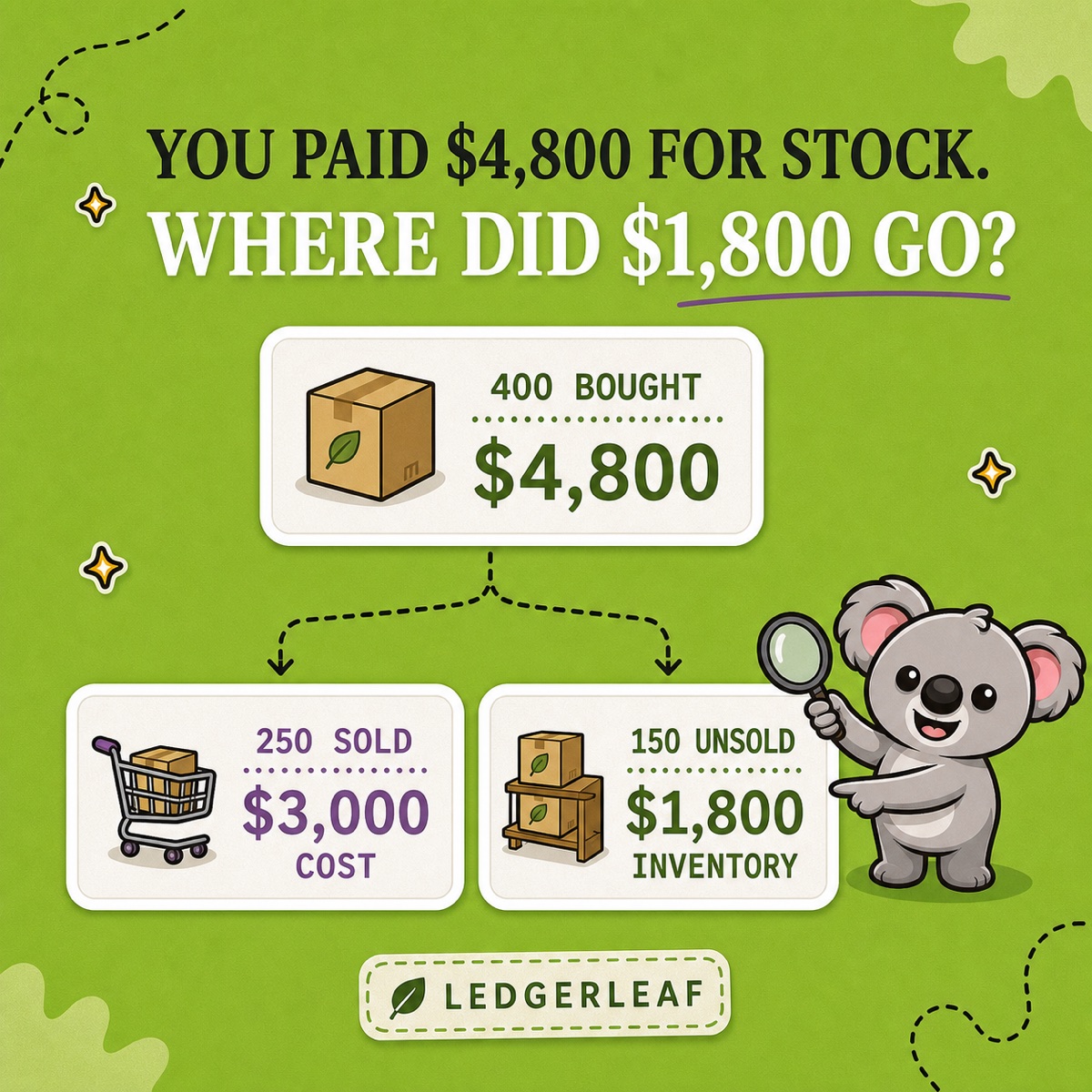
You paid a supplier £4,800 for 400 units. By month-end, 250 had sold. Shopify shows £3,000 of cost of goods sold. Book the whole supplier bill as COGS and you overstate product costs by £1,800, making the month look less profitable than it was.
At a constant £12 unit cost, that £1,800 belongs to the 150 unsold units still in inventory. The harder question is whether you can show which sales, stock quantities, and costs support those figures when your accountant asks.
LedgerLeaf brings sales exports and stock snapshots into one Shopify admin workflow. Use them together to check what sold, preserve what remained, and give your accountant records that explain the difference.
Why the supplier payment is not your Shopify COGS
For this example, assume no opening stock, returns, damaged goods, or other stock movements. All 250 sold units were fulfilled within the period, and the approved inventory cost is £12 per unit.
| What happened | Calculation | Amount |
|---|---|---|
| 400 units purchased | 400 × £12 | £4,800 |
| 250 units sold | 250 × £12 | £3,000 COGS |
| 150 units remain | 150 × £12 | £1,800 inventory |
The sold and unsold costs account for the full purchase. Under IAS 2, inventory cost becomes an expense when the related revenue is recognized. Your accountant should confirm the cost components, timing, and valuation method applicable to your business.
A correct multiplication still needs evidence. A supplier invoice proves the purchase, but cannot prove that 250 units sold or that 150 remain. That is where the LedgerLeaf records enter the review.
Check the sold units through a saved sales export
Open Sales in LedgerLeaf and use Edit filters to select the period for your close. Check which orders the selection includes, especially around month-end. An order placed in the period can still be awaiting fulfilment, so agree the accounting cutoff before treating it as a sale for COGS.
Use Column presets to save the fields your accountant needs to identify the orders under review. Download XLSX for an Excel review or CSV for an import. Keep the original export alongside the supplier invoice and the calculation. Next month, reuse the preset and change the period instead of rebuilding the file.
For the 400-unit example, use the exported order references to trace the sales supporting the 250 units. Investigate cancellations, refunds, and unfulfilled orders before accepting that quantity. A refund and a physical return are separate events, so a refund alone does not prove stock came back.
Shopify’s profit reports have a costly blind spot. They include only products and variants with costs recorded when sold. A neat profit total can therefore hide missing coverage.
If 20 of the 250 units lacked that £12 cost at sale, the covered 230 units would contribute just $2,760 of COGS. The $240 gap needs investigation. Compare the sales evidence from LedgerLeaf with the split between sales with and without recorded costs in Shopify’s Finance Summary. Keep the affected order references for your accountant’s adjustment.
Check the unsold units against the stock snapshot
Keep the LedgerLeaf Pro stock snapshot for the close with the sales export. Match the product or variant to the supplier record and check the 150 remaining units against the count. Record the snapshot date and inventory state so the next reviewer knows what the quantity represents.
Shopify’s inventory reports changed on 1 October 2026. From that date they use On hand, including Committed and Unavailable stock. Earlier periods still use Available. Comparing those periods without checking the basis can create a false stock discrepancy.
If 150 units are recorded but only 149 are counted, investigate the missing unit separately. Do not conceal it by changing the sold quantity to 251. Likewise, damaged stock may need a valuation adjustment even while it remains on hand. Keep these exceptions with the snapshot for review.
Keep later supplier prices out of the old calculation
Suppose the next delivery costs $14 per unit. Multiplying the original 150 remaining units by today’s $14 would produce $2,100, which is $300 above their original cost.
Keep the £12 supplier evidence with the earlier LedgerLeaf export and snapshot. When purchases at different prices mix, your accountant’s approved valuation method determines how costs are assigned. A current product cost or a homemade spreadsheet with one overwritten price cannot explain that history.
A simpler close at a lower monthly cost
LedgerLeaf saves the repeated work of rebuilding sales columns and gathering stock evidence across separate files. It runs inside Shopify admin with no separate account. Saved sales presets and CSV or XLSX exports are free. Pro costs US$5.90 a month and adds stock snapshots alongside payout and tax reports.
Data Export IO starts at US£12 a month for Basic Shopify stores and charges more on higher Shopify plans. That is a higher reporting bill for a merchant whose immediate need is the sales-and-stock review above. LedgerLeaf gives you the records for that workflow at a lower price, without making each close another spreadsheet setup project.